

Google Find My GPS Tracker Android Airtag Bærbar GPS Tracker Bluetooth Lokaliseringsenhed til Cykel Nøgler Aldrig Miste Ting
SPECIFICATIONS
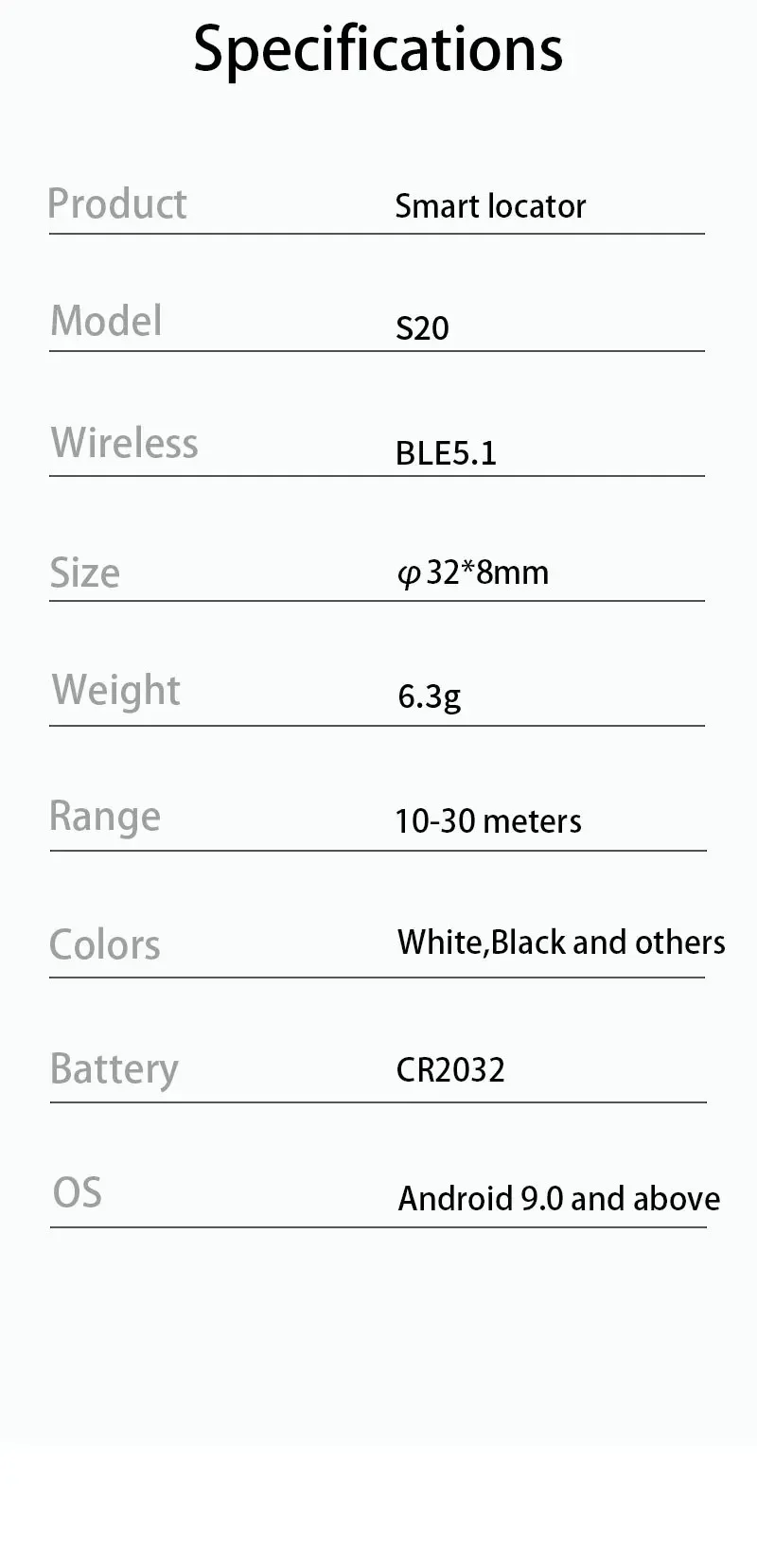
Battery Life: 30 Hours & Up
Brand Name: NONE
Choice: yes
Display Type: Others
GPS type: GPS Tracker
Gps Module: Yes
High-concerned chemical: none
Human interface input: Others
Is it wireless: Yes
Origin: Mainland China
Screen Size: No screen
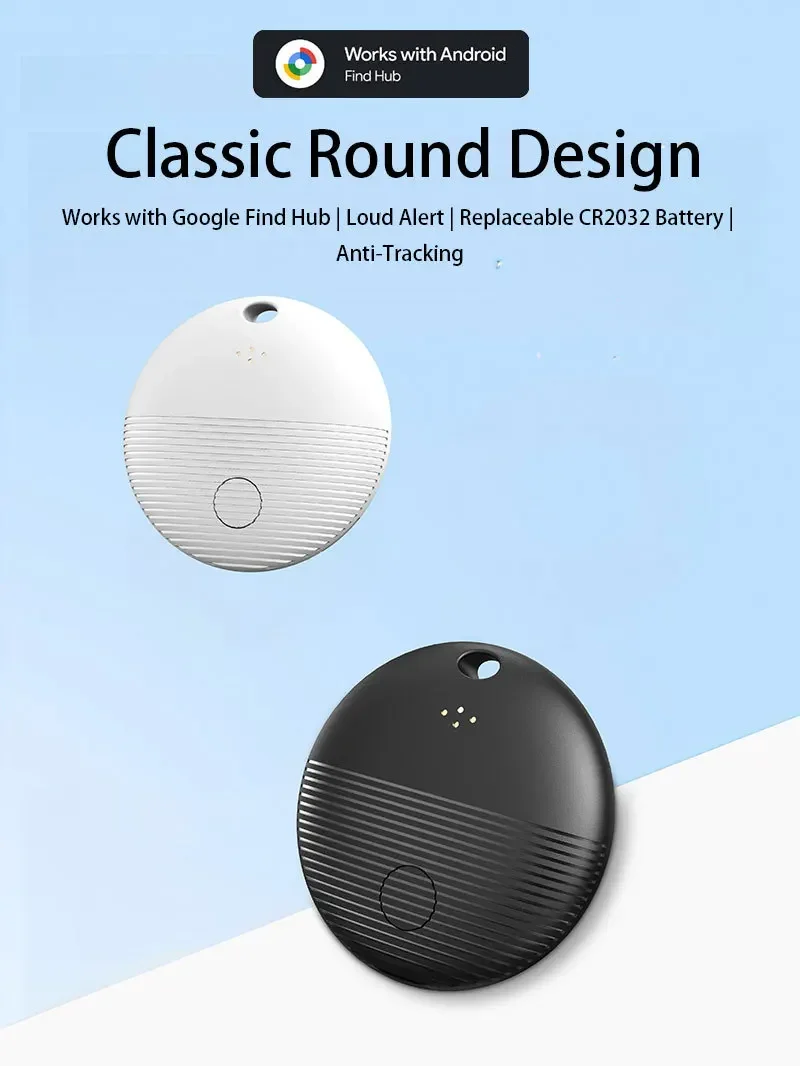
Shape: Round
Special Features: Waterproof
semi_Choice: yes
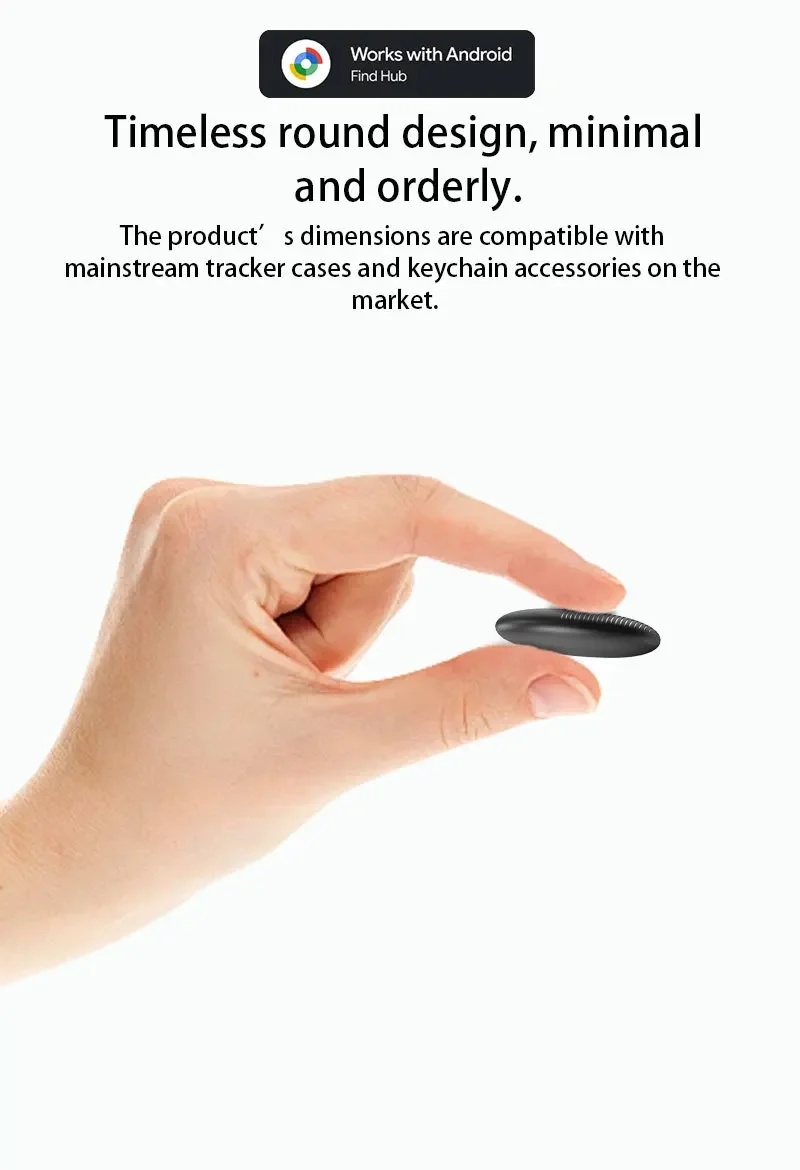
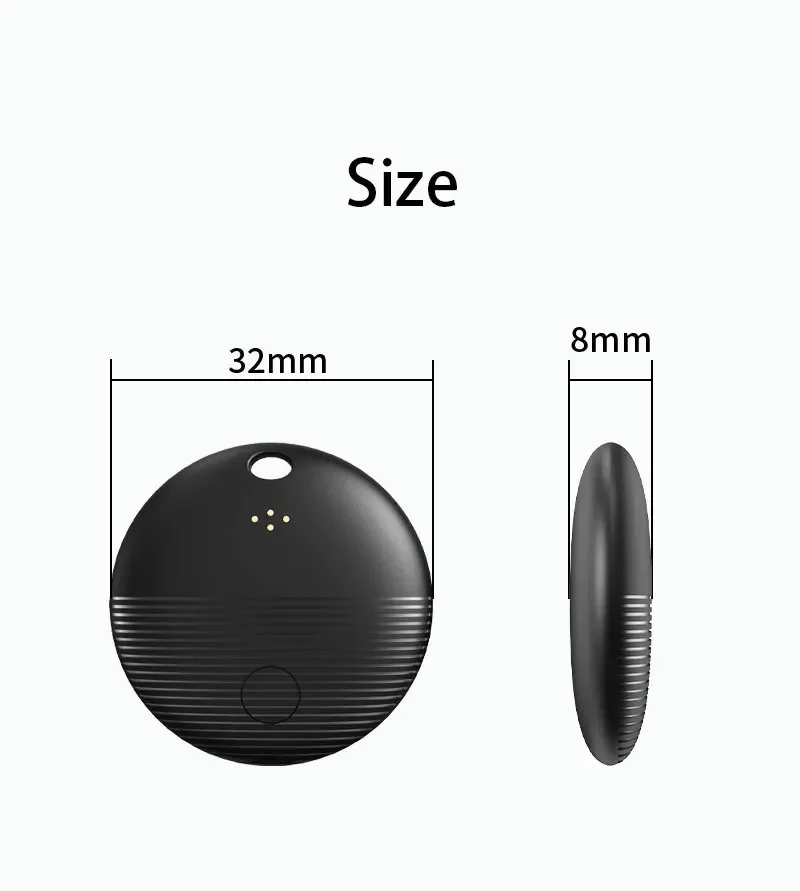
Product Size: ≈32×32×7.9mm
Working Temperature: -20℃~60℃
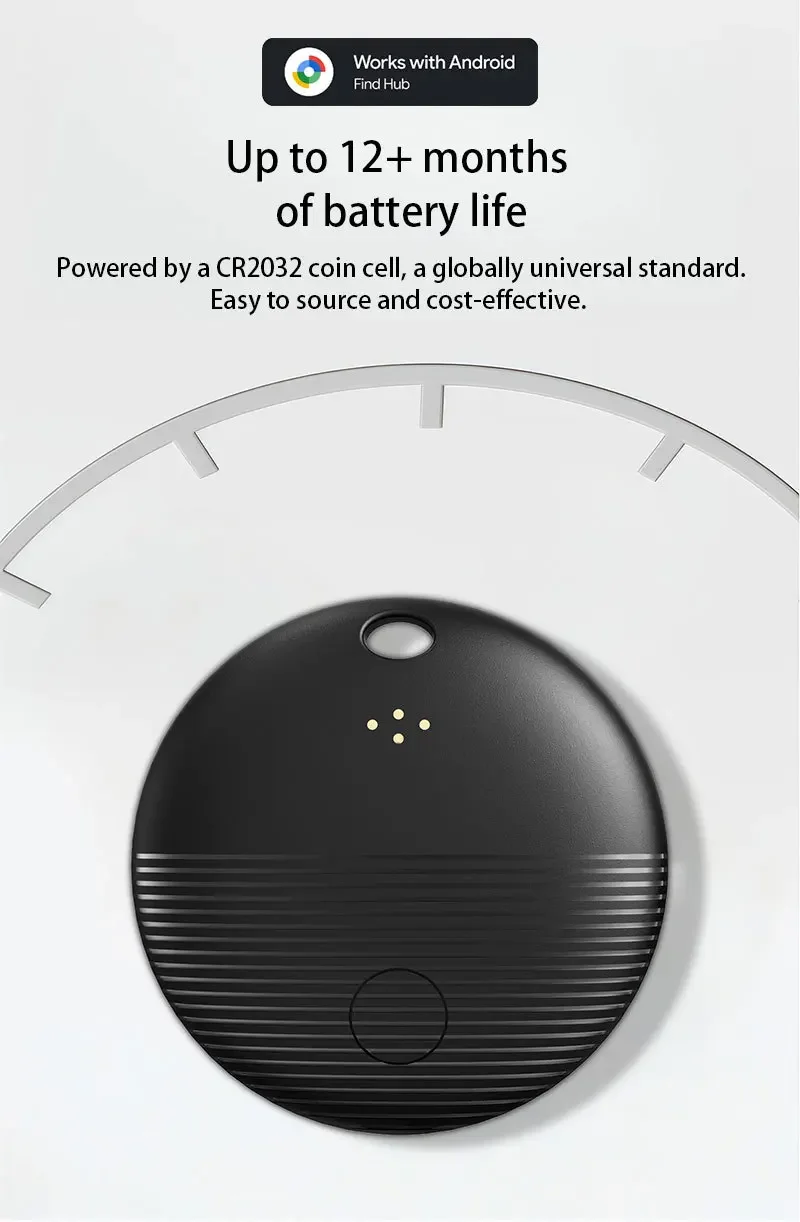
Battery: CR2032 Non Rechargeable Button Battery(Replaceable)
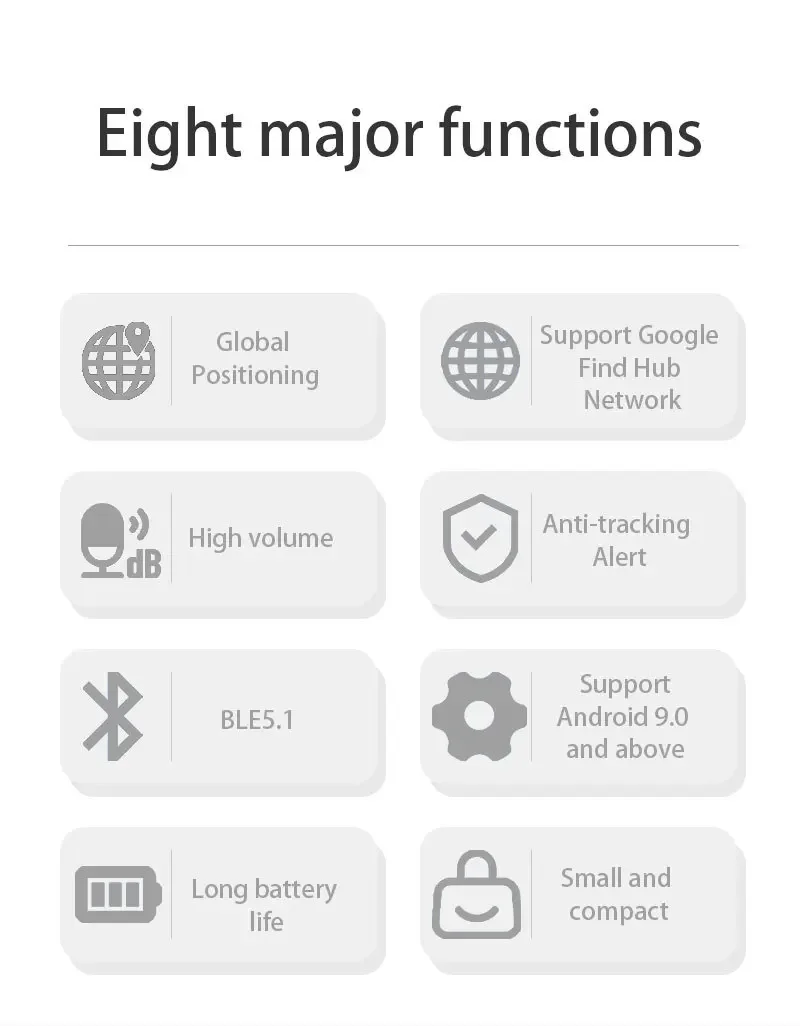
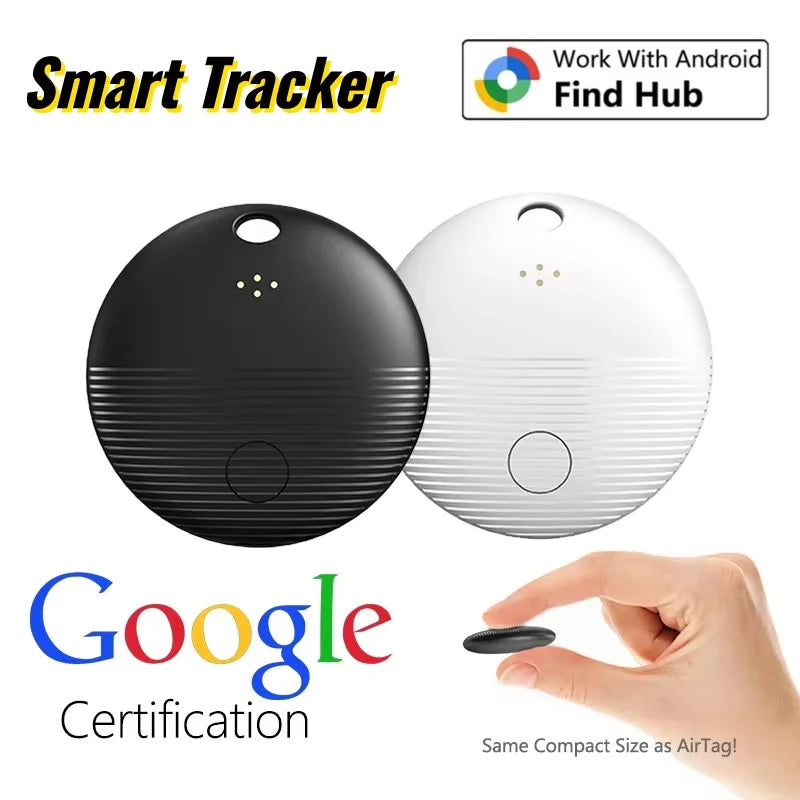
• Google Certified Product
• Integrated with Google Find My Device
• Global positioning coverage
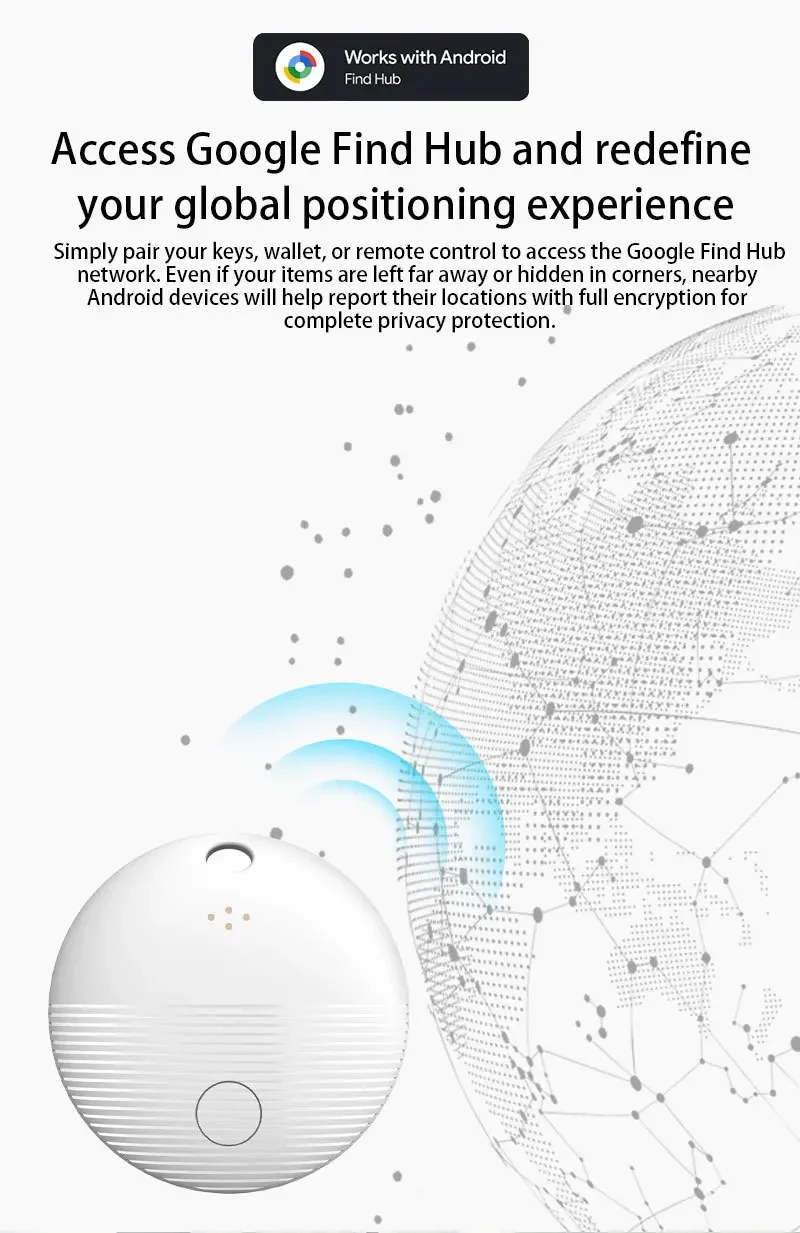
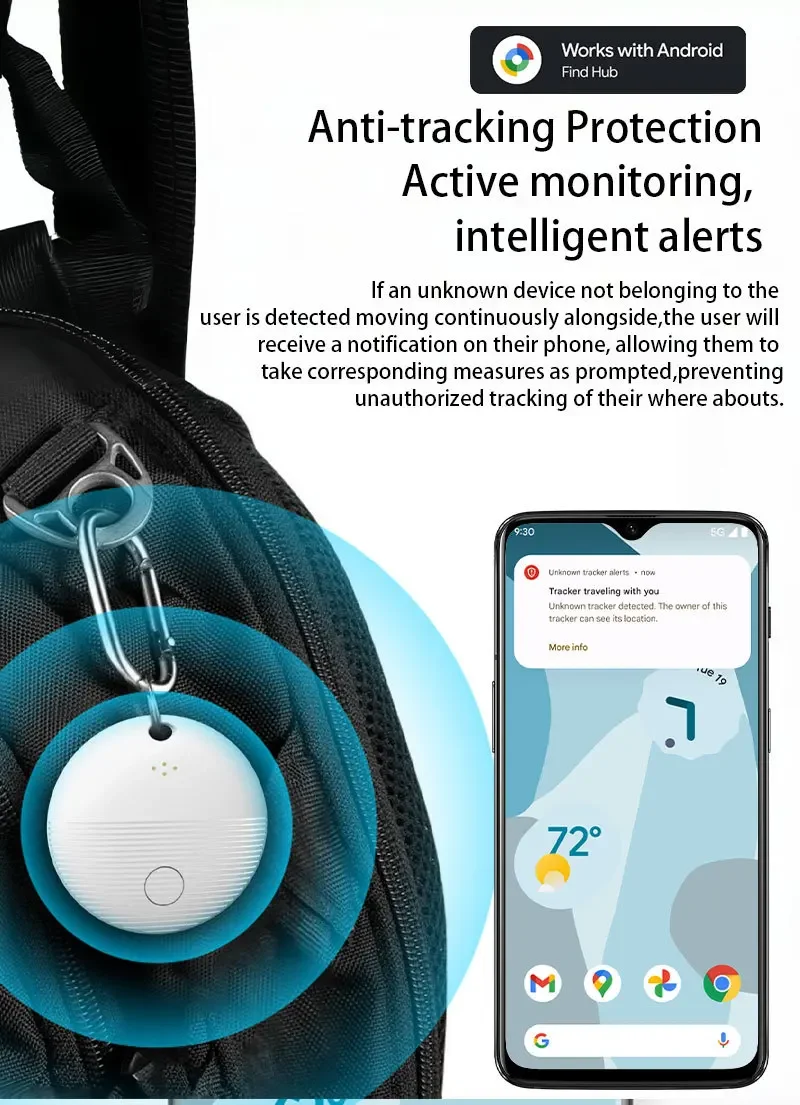
• Privacy Protection
• IP67 Waterproof Rating
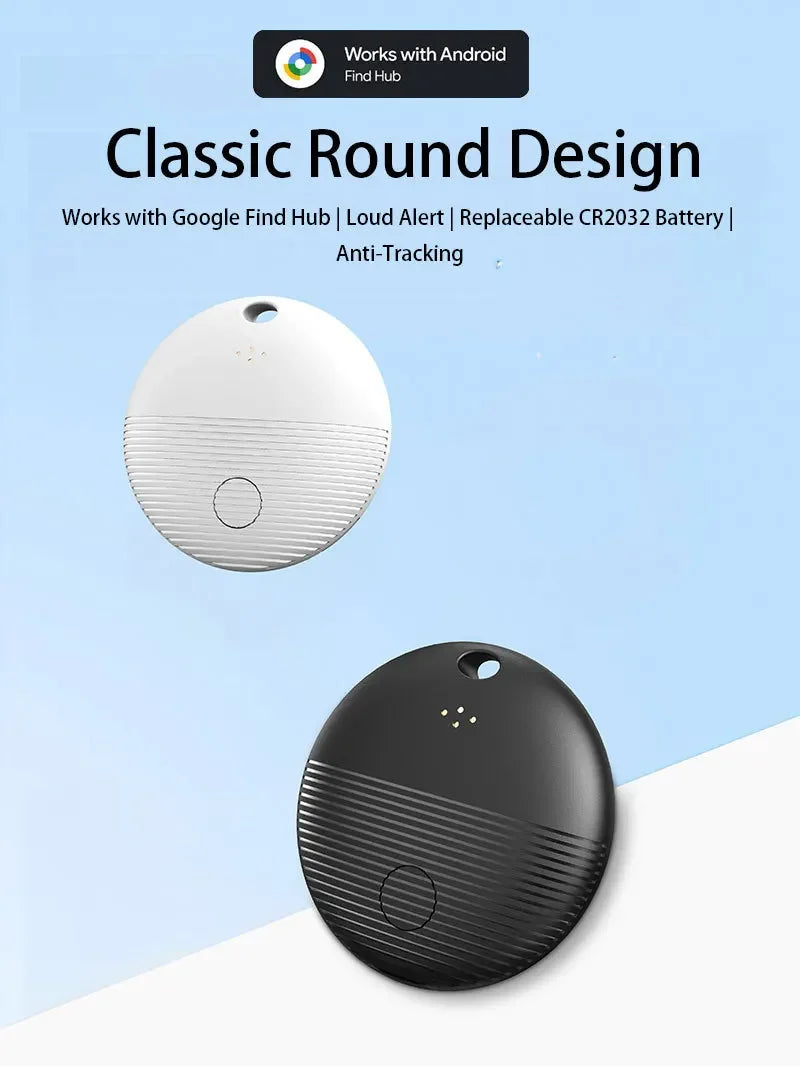
• Long-lasting Replaceable Battery
Description:
1. Reliable Protection, Anytime.
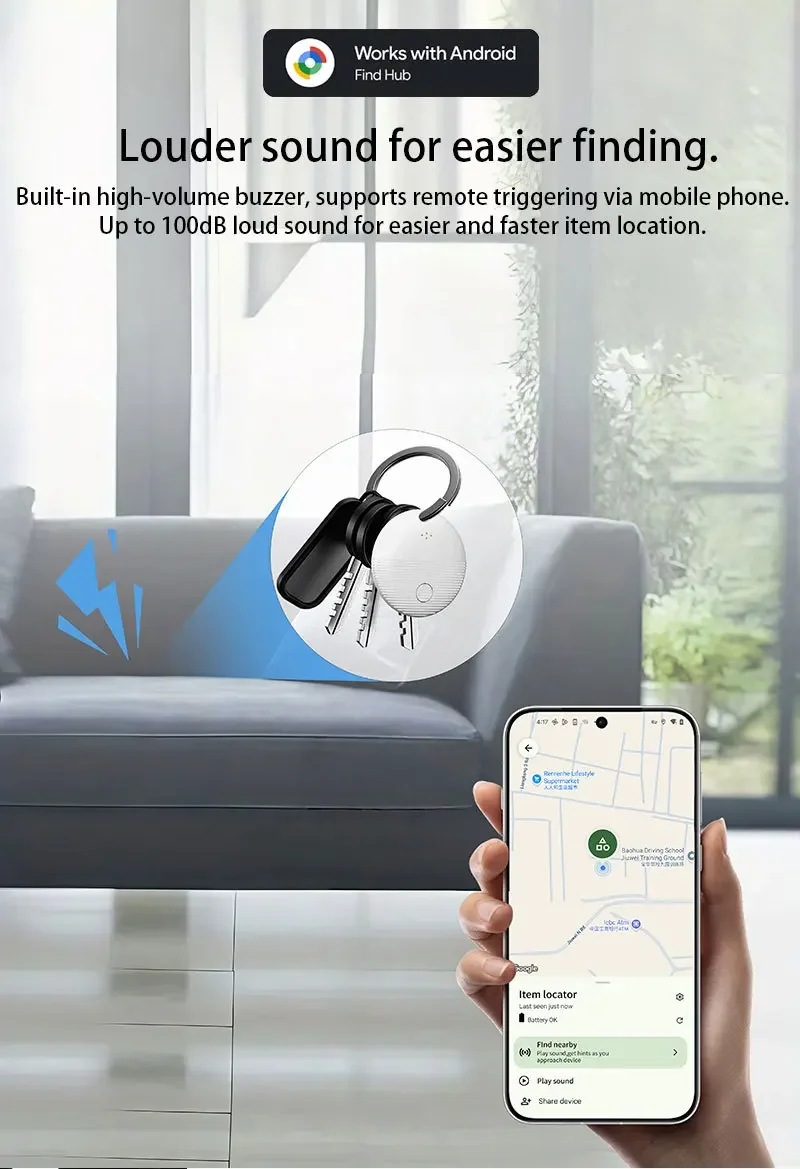
The Android Smart Anti-Loss Device seamlessly connects with your phone. Just open the app to instantly locate any lost items. With the new, com pact design, it's there to protect, so you can live worry-free.
2. Rediscover Important Moment.
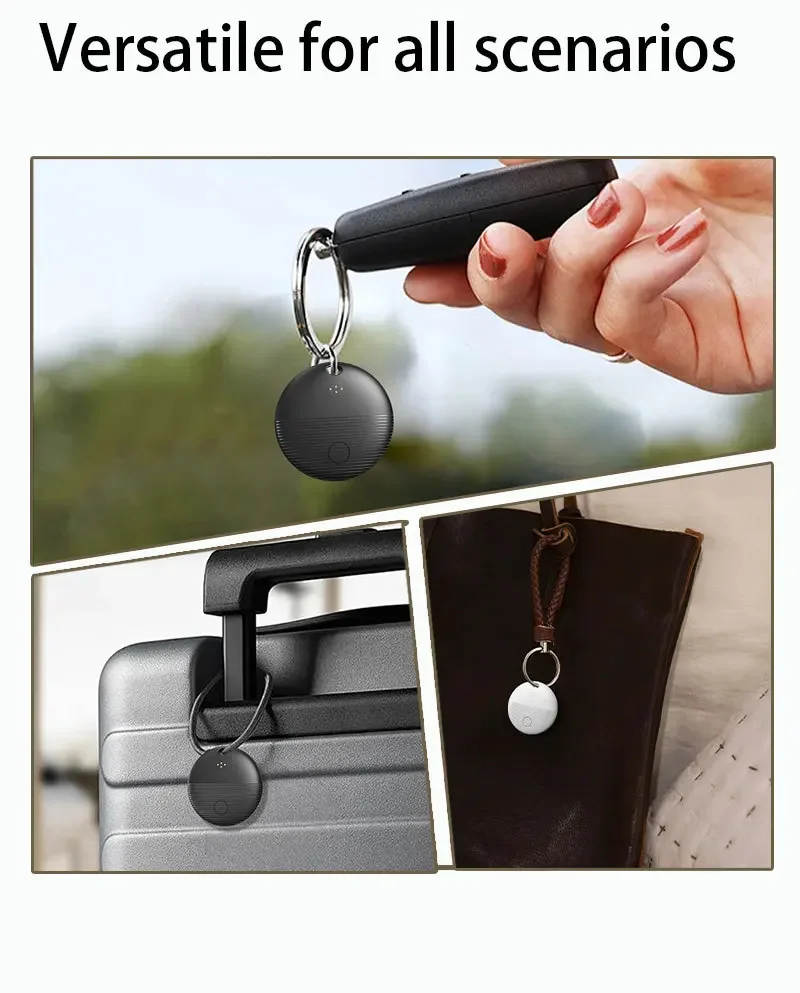
Forgot your wallet or lost your keys? The new Android Smart Anti-Loss Device gives you peace of mind! Easily track your items with your Android device and safeguard your essentials anytime.
3. Track Everything, Anywhere!
Say goodbye to losing things. The new Android Smart Anti-Loss Device helps you track all your valuables, even when they're out of sight. With worldwide tracking, it's perfect for travel.
Note:
Please use it with Google Find My APP Device.
Please confirm that your phone can download the Google Find My Device APP before placing an order. Thank you.
This tracker basically works like AirTags. It needs to update the location effectively when there are other Android phones nearby, and the phone must also register or use Google Find My Device to report the last tracker location to you.
FAQ:Why can't my Android phone connect to Tag ?
A:This is usually because the user missed the automatic pop-up window of Tag, you can try to restore the factory settings. The steps are as follows
How to reset:Please refer to the paper manual for the reset operation
(P.S.:If you can't connect even after reset and no automatic pop-up window appears, please refer to the Troubleshooting Guide.
https://www.rexzol.com/support/google/troubleshooting)
Step: Manual Connection Steps(Please refer to the video below)
If the automatic popup doesn't appear, follow these steps to connect manually:
1. Open phone settings
2. Go to Google
3. Select All services
4. Go to Devices
5. Turn on Scan for nearby devices
6. View Available devices nearby


Vælg muligheder